Cessna Throttle: Realistic Flight Simulator Control Guide
Dec 19, 2025
Master your flight simulation with a Cessna throttle controller that delivers unmatched realism and precise control.
Whether you're a student pilot or an enthusiast, discover how these authentic throttle quadrants enhance your training and immersion. Dive in to learn key features, compatibility, and expert setup tips for the ultimate flying experience.
What Is a Cessna Throttle Controller?
A Cessna-style throttle is the go-to control for any serious flight sim enthusiast looking to replicate the real deal experience you get with the throttle quadrant of an aircraft like a Cessna 172 or 152 to name a few of the most popular single engine trainers out there.
These desktop units simply plug in via USB and give you actual levers to play with, putting an end to those on-screen sliders and keyboard bindings that can never quite match up to the real thing.
This article zeroes in on simulator hardware specifically - the sort of controller quadrant you'd use with PC flight sims which came out between 2016 and 2025, covering the likes of X-Plane 11 and 12, Microsoft Flight Simulator 2020 and even Prepar3D.
Here’s what defines a typical Cessna throttle unit:
-
TPM layout: Three separate levers black throttle, blue propeller, and red mixture matching the standard Cessna cockpit arrangement
-
Integrated secondary controls: Many units include flaps lever detents and a trim wheel for complete cockpit functionality
-
USB plug-and-play operation: Most controllers are automatically recognized by Windows 10/11 without requiring additional drivers
-
Compact desktop form factor: Designed to sit beside a yoke or joystick, often with clamp or desktop mount options
-
Direct axis control: Each lever maps to a dedicated simulator axis for precise control over engine parameters
The goal is simple: make your simulator setup feel closer to the real thing so you can practice procedures with the same hand movements you’d use in an actual aircraft.
Key Features of a Cessna Throttle Quadrant
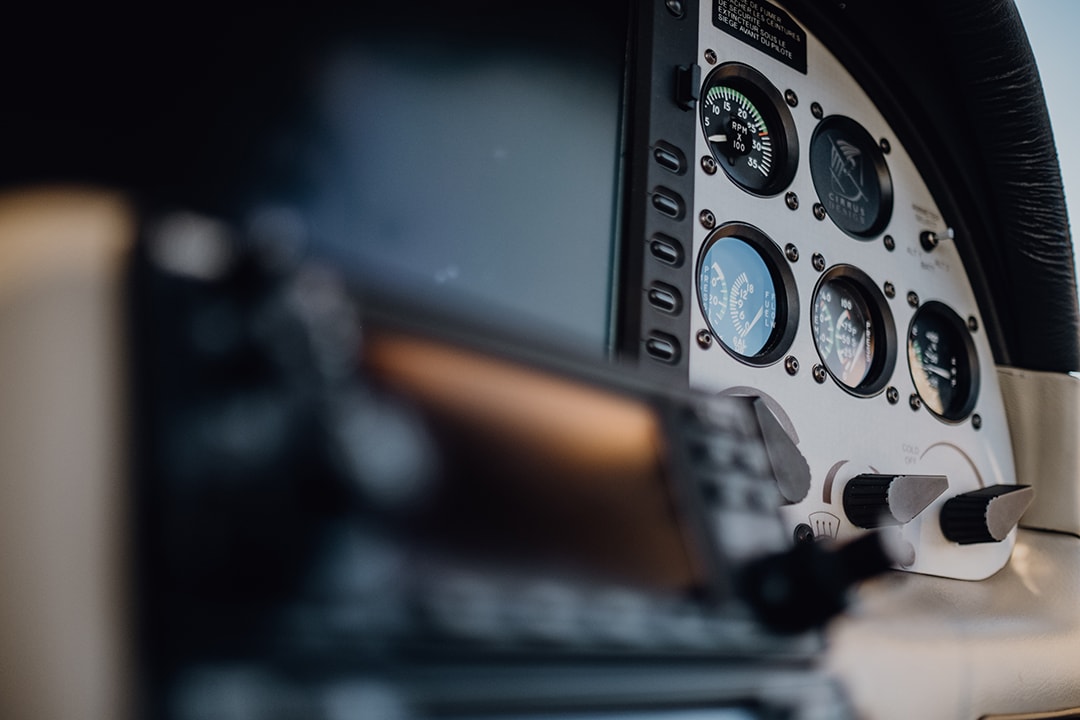
Not all throttle controllers are created equal. When evaluating units for your setup, these are the features that matter most for realistic Cessna-style flying.
Adjustable throttle tension
When you've got a top notch throttle controller the locking nut or tension screw can make all the difference.
This lets you dial in just how much 'give' you want from each lever some pilots prefer a really smooth, easy to use throttle for fine tuning during approaches, while others like to make it a bit more challenging with some serious resistance to stop it from moving by accident. Having control over that lets you get the feel just right.
Realistic lever travel
A good controller provides full fore-and-aft movement with clearly defined idle and full-power positions. This matters for:
-
Practicing power changes during takeoff rolls.
-
Setting cruise power at specific percentages.
-
Executing smooth power reductions on final approach during the landing pattern Cessna 172 to decrease quantity of engine output in a controlled, realistic way.
-
Performing mixture cutoff procedures during shutdown.
Build quality options
The market includes several construction approaches:
|
Build Type |
Characteristics |
Best For |
|---|---|---|
|
3D printed |
Lightweight, customizable, lower cost |
Budget-conscious builders, first-time buyers |
|
CNC-milled metal |
Heavy, durable, excellent quality |
Long-term use, professional training setups |
|
Hybrid (printed case, metal internals) |
Balance of cost and durability |
Most home cockpit applications |
Many 3D printed units offer very high quality mechanics despite the accessible price point, using high-resolution printing for smooth lever action.
Integrated flaps and elevator trim
Some controller features extend beyond basic TPM:
-
Flaps lever with detent positions matching one notch increments (0°, 10°, 20°, 30° for 172-style aircraft)
-
Trim wheel controls that provide tactile feedback for pitch trim adjustments
-
Momentary switch options for functions like carb heat or fuel pump
Standard USB connectivity
They hook up via either USB 2.0 or 3.0 and present themselves as generic joysticks no messing about with drivers or anything like that.
As luck would have it, the big simulators like X-Plane and MSFS come with built in profiles that can automatically detect and set these units up.
Configurable buttons and switches
Beyond the main levers, look for:
-
Mappable buttons for landing lights, strobes, or avionics
-
Switch auto returns for momentary actions
-
Additional axes for cowl flap or other secondary controls
Cessna Throttle Compatibility with Flight Simulators

One thing that always worries people buying hardware for their sim is whether it will play nice with their favorite software but don't worry: pretty much all Cessna throttle units just plug in and go with mainstream simulators on modern PC's.
X-Plane 11 and X-Plane 12
Both versions recognize throttle quadrants as generic joystick/throttle devices. Setup involves:
-
Opening the Joystick settings panel
-
Moving each lever to identify its axis
-
Assigning throttle, prop, and mixture to the corresponding simulator functions
-
Saving a dedicated profile for your Cessna flying
Most users report the controller is automatically recognized within seconds of plugging in.
Microsoft Flight Simulator 2020
MSFS detects USB controllers immediately and offers:
-
Default sensitivity curves for throttle response
-
Fine-tuning options for mixture controls and prop behavior
-
Profile saving for quick switching between aircraft types
The simulator’s controller menu lets you adjust dead zones and sensitivity to match your hardware’s feel.
Prepar3D and Legacy Simulators
Prepar3D v4 through v6 works with standard Windows HID joystick drivers. Older platforms like FSX also function without proprietary software the controller simply appears as a joystick device in Windows.
Operating System Support
|
OS |
Support Level |
|---|---|
|
Windows 10/11 |
Full native support, no drivers needed |
|
macOS |
Some manufacturers provide unofficial guidance for X-Plane |
|
Linux |
Works with X-Plane using standard HID drivers |
Setup Resources
Many manufacturers ship units with:
-
Pre-made configuration profiles for popular aircraft
-
PDF setup guides with step-by-step instructions
-
Video tutorials covering initial calibration
A complete setup typically takes under 15 minutes from unboxing to flying.
Using a Cessna Throttle for Realistic Training

Beyond gaming immersion, a Cessna-style throttle serves a practical purpose: procedural training. Students working toward certificates often use simulator sessions to rehearse tasks before getting into actual aircraft.
Power management practice
Having separate throttle, prop, and mixture levers lets you practice real-world tasks:
-
Takeoff: Full throttle, mixture rich, prop full forward
-
Climb: Reduce to climb power (typically 25” manifold pressure, 2500 RPM in a 182)
-
Cruise: Set 65–75% power with leaned mixture for efficiency and realistic fuel for Cessna 172 management
-
Approach: Gradual power reduction while maintaining airspeed
-
Go-around: Smooth, full-power application with mixture enrichment
These aren’t just game mechanics they’re the same procedures you’d execute in the plane.
Checklist rehearsal
Physical controls let you work through checklists the way you would in a real cockpit:
-
Run-up procedures with actual lever movements
-
Before-takeoff checks with proper power settings
-
Cruise configuration including mixture leaning
-
Pre-landing checks with appropriate power management
-
Shutdown procedures including mixture cutoff
Specific training scenarios
Depending on your controller features, you can simulate:
-
Carb heat application for icing situations (common in Part 61 and Part 141 syllabi)
-
Partial power loss requiring prop and throttle adjustment
-
Mixture management at various altitudes
-
Emergency procedures requiring specific power configurations
Who uses these setups?
-
Student pilots supplementing flight training
-
Fixed-base operators building procedure trainers
-
Home cockpit builders replicating the 1970s-2000s training fleet
-
Rated pilots maintaining currency between flights
The value isn’t in replacing actual flight time it’s in arriving at the airport with procedures already in muscle memory.
Tips for Choosing and Setting Up a Cessna Throttle
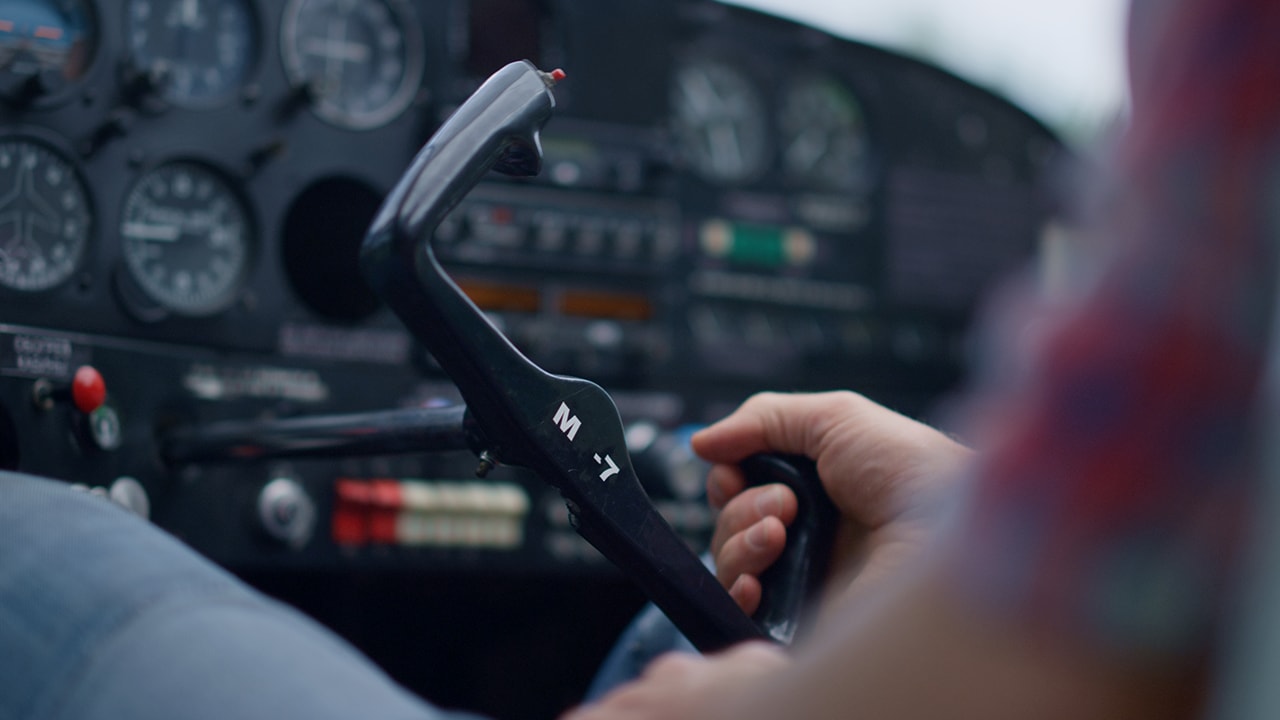
Getting the most from your purchase starts with smart selection and proper calibration. Here’s a practical approach to both.
Choosing the right unit
Before you hit cart add, consider these factors:
-
Build materials: Decide between 3D printed (lighter, affordable) versus metal/wood chassis (heavier, more durable)
-
Lever smoothness: Look for reviews mentioning consistent resistance without catching or binding
-
Mounting options: Confirm the unit offers clamp, removable desktop mount, or hard-mount holes matching your desk setup
-
Simulator compatibility: Verify the manufacturer lists your primary sim (X-Plane 11, X-Plane 12, MSFS 2020) as supported
-
Operating system: Most units target Windows, so Mac users should confirm compatibility before purchase
-
Adjustability: Units with adjustable tension and replaceable knobs offer better long-term value
Basic calibration steps
Once your unit arrives:
-
Connect via USB and wait for Windows to recognize the device
-
Open your simulator’s controller settings
-
Move each lever through its complete range while the sim detects the axis
-
Assign throttle, prop, and mixture to appropriate functions
-
Test idle and cutoff positions while parked on the ramp
-
Adjust dead zones if you notice any unwanted movement at lever extremes
-
Save as a dedicated “Cessna profile” for quick loading
Securing your setup
Prevent problems during aggressive flying:
-
Use the included clamp or mount hardware to lock the unit in place
-
Route USB cables to avoid snagging during control inputs
-
Consider cable management clips to keep connections secure
-
If practicing short-field or soft-field takeoffs, verify the unit doesn’t shift under quick power applications
Staying current
Flight simulators update frequently, occasionally affecting controller compatibility. Before purchasing:
-
Read recent reviews dated within the last 12-18 months
-
Check manufacturer forums or Discord for current compatibility notes
-
Verify the stock quantity and that the model is still actively produced
-
Confirm return policies in case the unit doesn’t work with your specific sim version
Conclusion
A decent Cessna throttle controller turns your sim from just a game on a screen to a real training tool.
Whether you're a student pilot looking to practice your procedures on days when you can't get to the airfield, or just a enthusiast who wants to get a bit more immersed in your virtual flying, this kind of hardware makes a big difference you start to get a feel for the actual levers and whatnot.
Its worth the money when you start to notice how much quicker and naturally it all feels.
You get what you pay for with a good throttle quadrant all that practice and repetition starts to pay off and those skills can transfer straight across to real flying. So the first step is to pick which sim you use most, make sure the unit is compatible with your OS and check out some recent reviews from other users to find one that fits your budget.
Next up: measure the thickness of your desk edge, and decide whether to go for a clamp or a desk mount. You want a Cessna throttle setup that makes you feel confident and in control.
